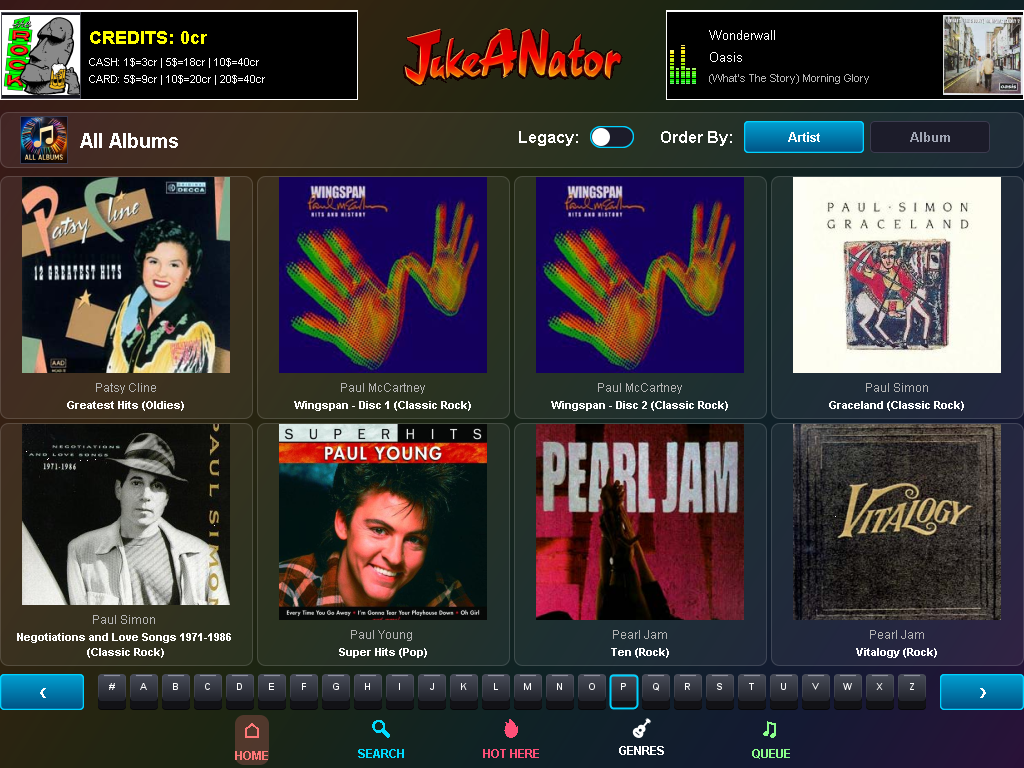
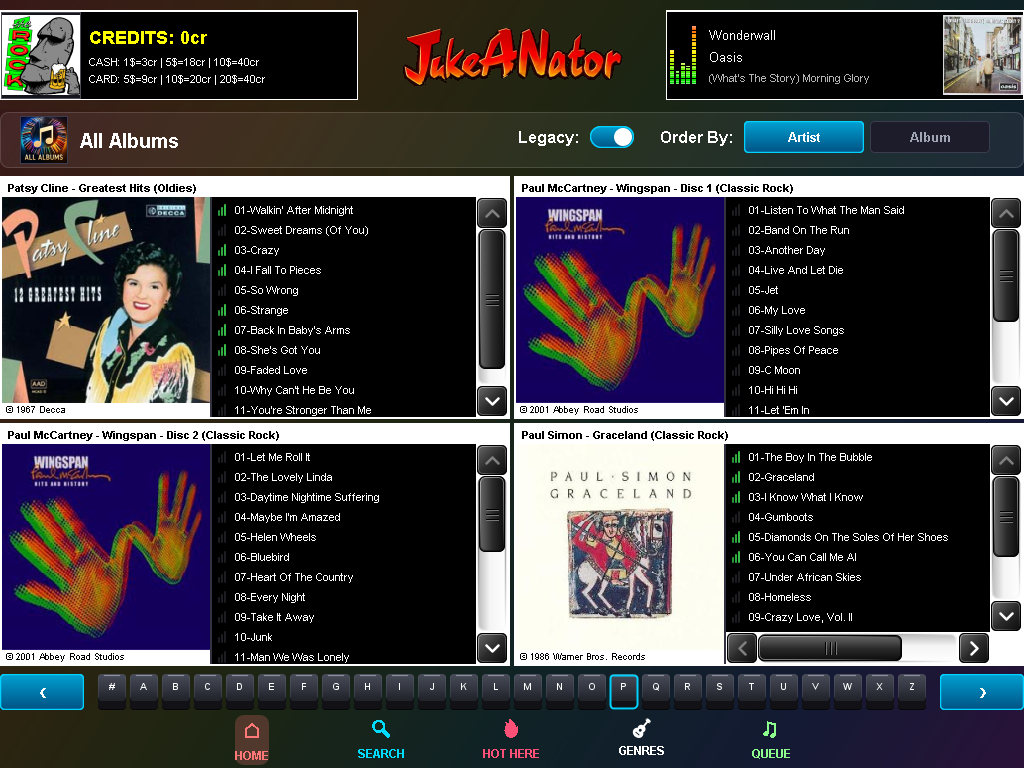
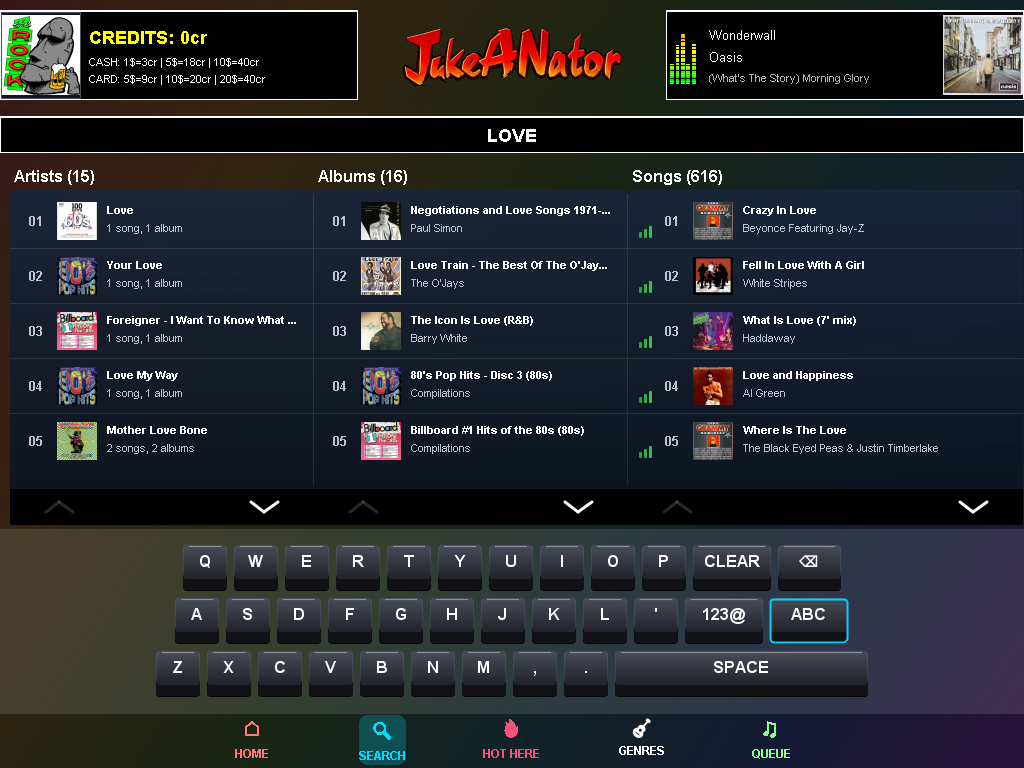
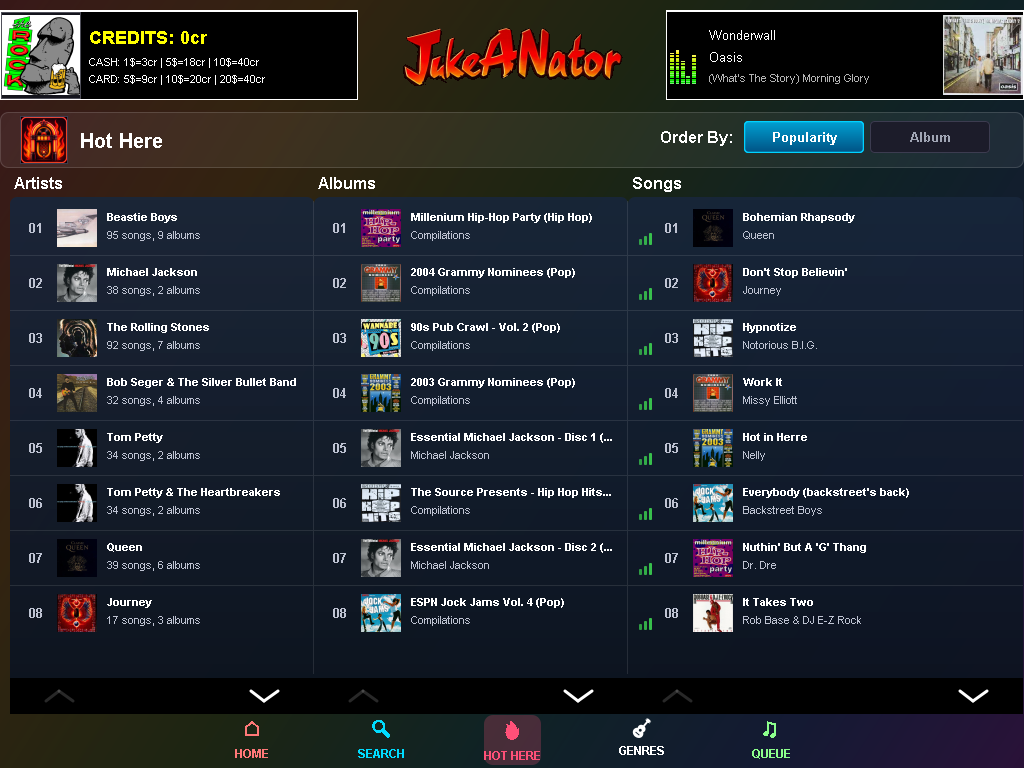
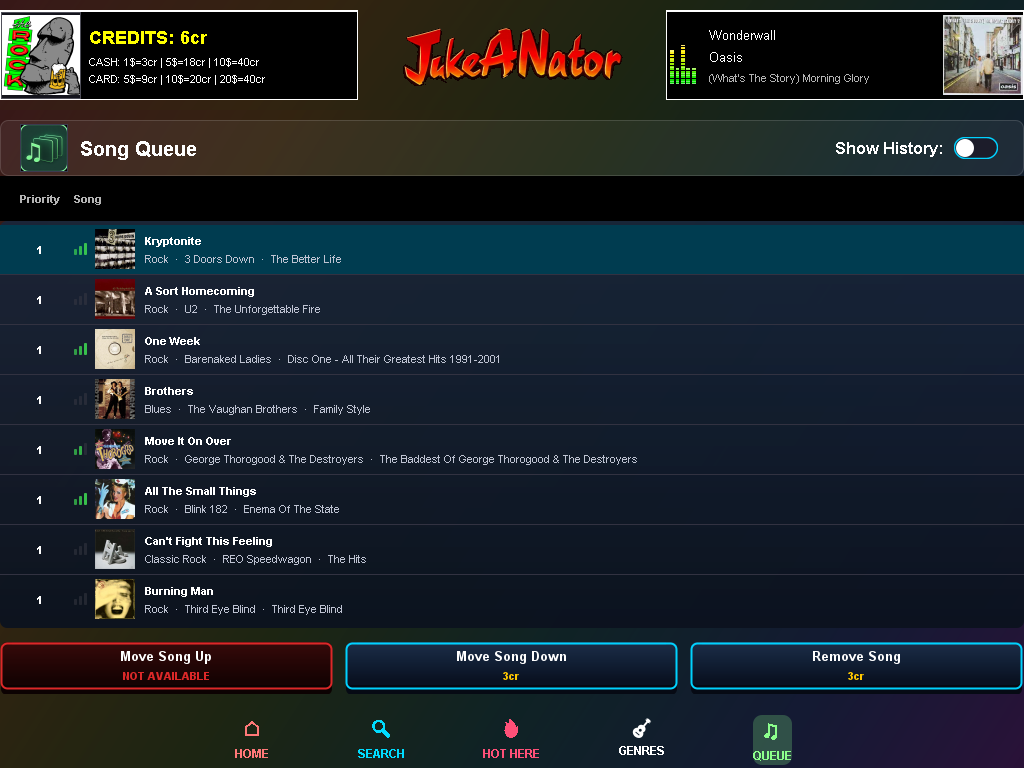
Across the top of every screen you will always see the song that is currently playing, your available credits and the location's logo. The large, touch-friendly tabs along the bottom (Home, Search, Hot Here, Genres and Queue) mean any part of the jukebox is only one tap away.
A toggle on the Home screen switches between the album-cover view and the Legacy view at any time. The operator chooses which view the jukebox starts in, and the jukebox returns to it after a period of inactivity.
Because everything is done on-screen, JukeANator never needs a physical keyboard or mouse, which is exactly what you want in a bar, pool hall or restaurant where the jukebox is housed in a cabinet.
This is the quickest way for a patron to find a crowd favorite, and a great way to discover what everyone else in the room has been listening to.
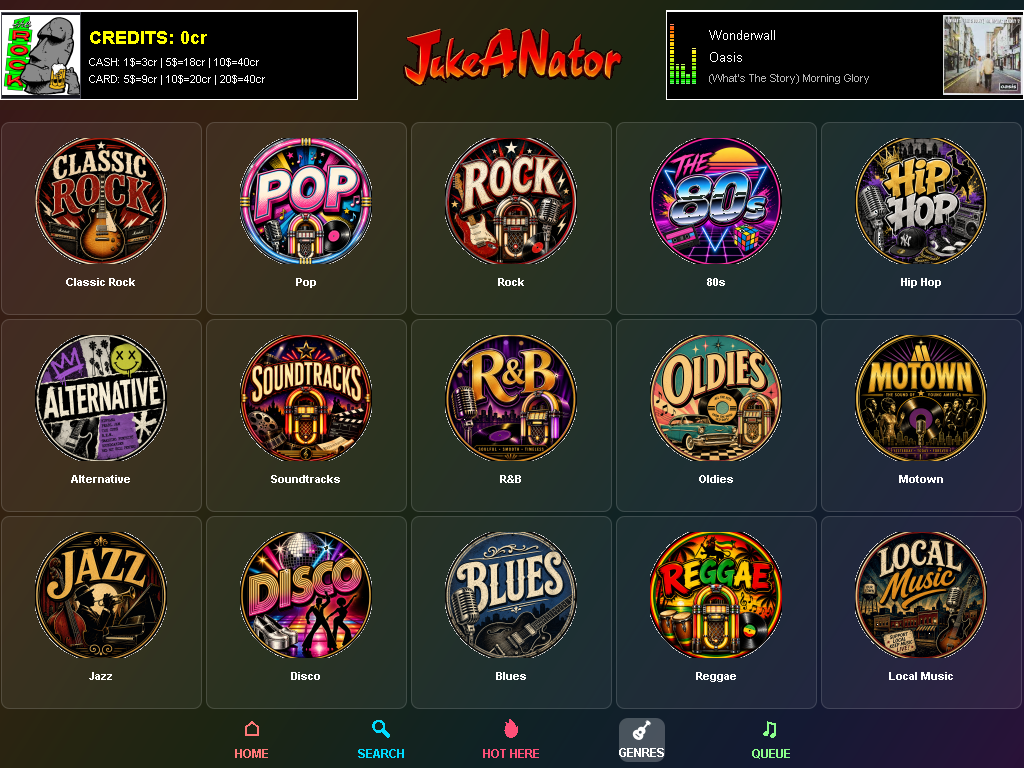
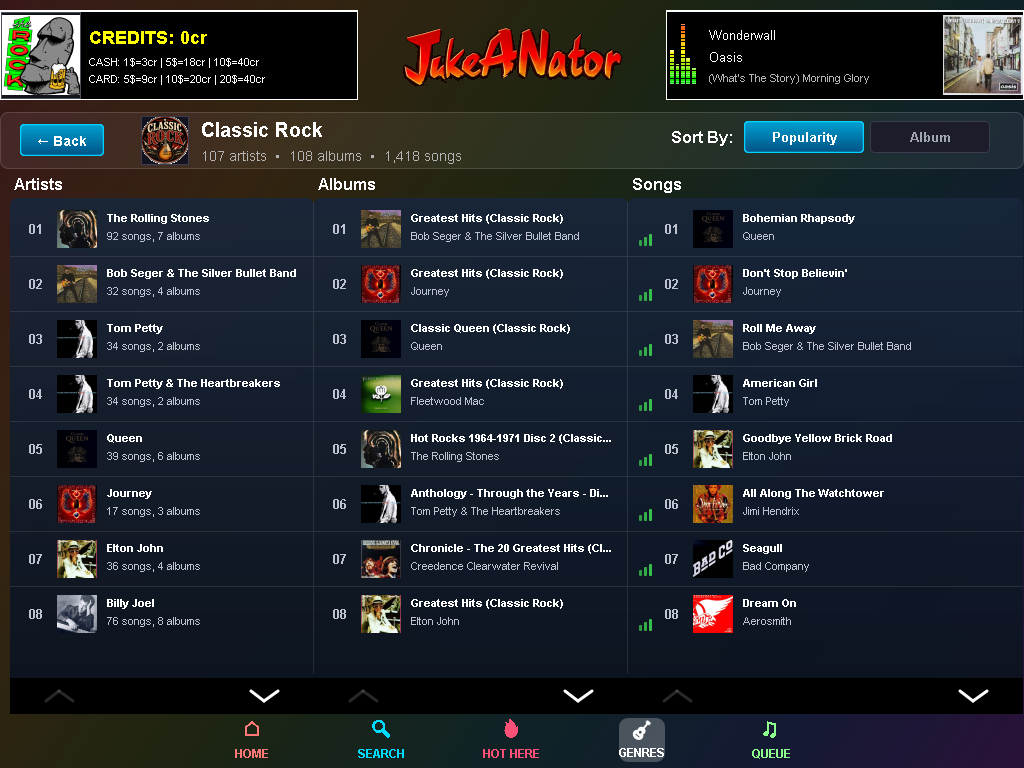
Tapping a genre opens the Genre Details screen, which shows the artists, albums and songs in that genre in separate columns, sortable by popularity or by name. From there you can drill into any artist or album, or play a song directly. Genres are determined by how the music is organized on disk or by the songs' own tags, so the operator stays in control of how the library is grouped.
Patrons can also spend credits to move a song up or down in the queue, or to remove a song, with the cost of each action clearly shown on its button before anything is spent. When adding a song, a "Priority Play" option lets a patron jump ahead of other selections for a few extra credits.
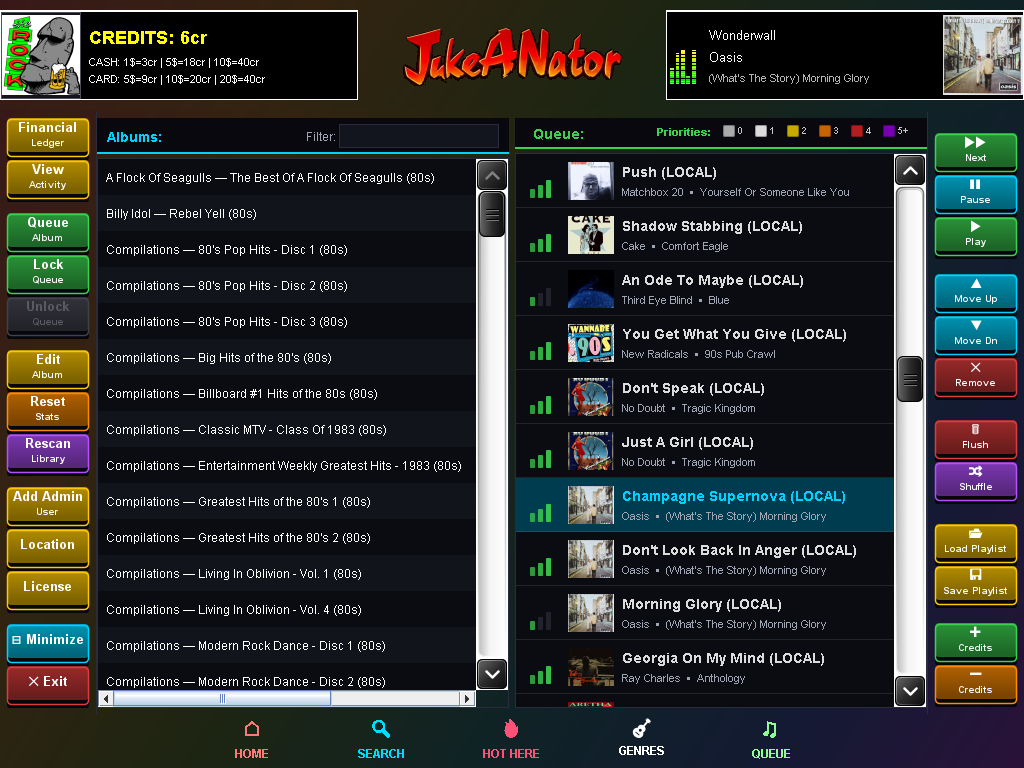
For the business side, the Admin screen provides a Financial Ledger of cash, card and mobile revenue (including the owner and operator split), a View Activity log of what has happened on the jukebox, and buttons to add or remove credits by hand.
Lastly, there are tools for managing the jukebox itself. You can rescan the music library for new songs, edit an album's details, reset play statistics, add admin users, update the location's settings and logo, and view the license.